
Get a morning brief from Claude every day (Cowork, step by step)
A beginner-friendly walkthrough: use Claude Cowork's scheduled tasks to wake up to a tidy morning brief — email, calendar, and priorities — pulled together for you while you sleep. No code.
Get «Get a morning brief from Claude every day (Cowork, step by step)» free
Drop your email — the download unlocks instantly, and you'll get new guides as they drop.
Imagine opening your laptop and a short brief is already waiting: what's on your calendar, the emails that actually need you, and the three things worth doing first. You didn't make it — Claude did, at 6am, while you were still asleep.
That's a scheduled task in Claude Cowork. You set it up once, and it runs every morning on its own. This guide walks you through it from zero. No terminal, no coding — if you can write a text message, you can do this.
What Claude Cowork actually is
Cowork is a mode inside the Claude desktop app, sitting right next to Chat and Code. The difference from normal chat is simple but big:
- Chat answers your questions.
- Cowork does the work — it can read your files, open your apps, and use the tools you connect, then hand you a finished result.
You describe the outcome you want and the cadence ("every morning"), and Cowork takes it from there. You stay in control the whole time: it asks before doing anything significant, and it only sees the folders and tools you allow.
What we're building
A morning brief: one short, scheduled task that gathers your day into a single summary and delivers it before you start work. Once it's set up, you never touch it again — it just shows up.
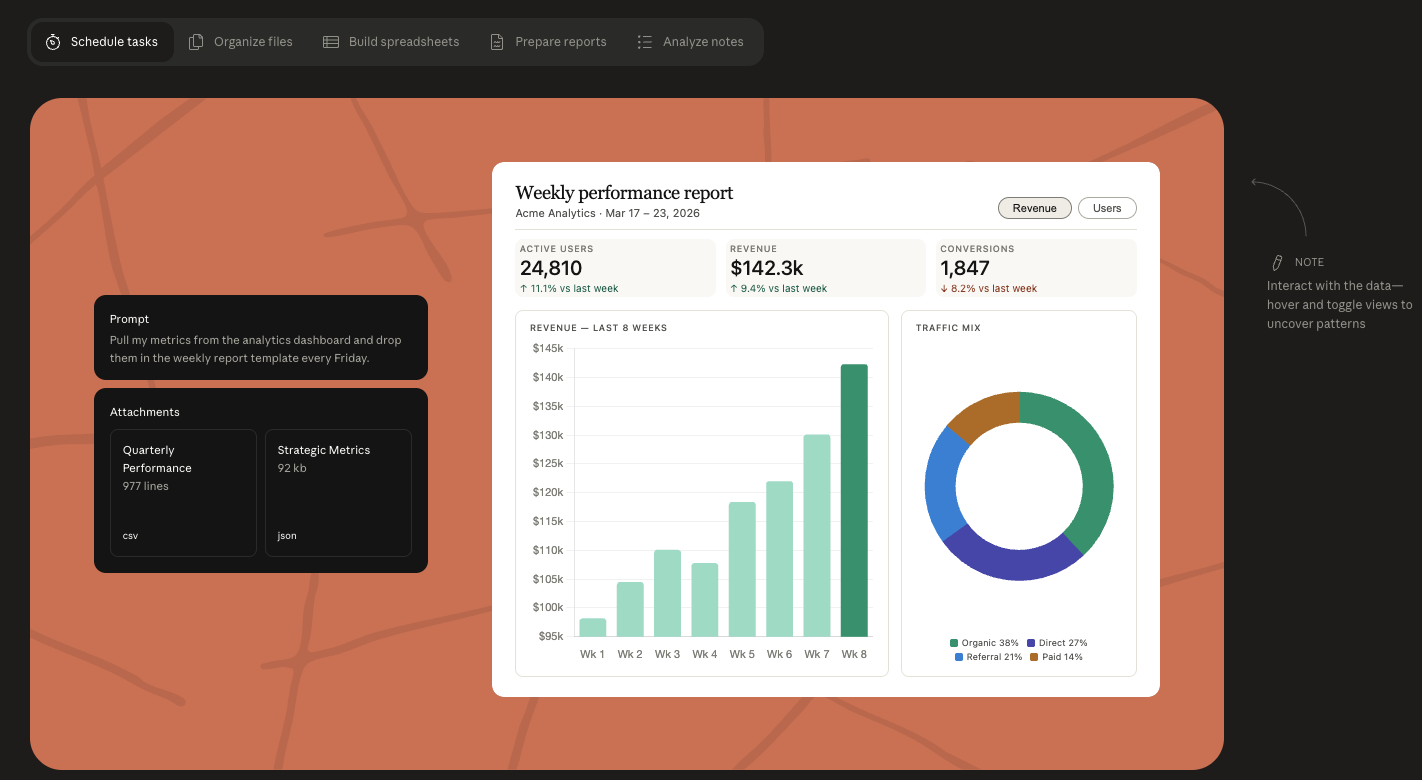
Before you start
You'll need:
- The Claude desktop app (Mac or Windows) — download it from claude.ai if you don't have it yet.
- A Claude plan that includes Cowork — it's included in Pro ($17/mo), and in Max for heavier use.
- About 5 minutes.
That's it. Let's go.
Step 1 — Open Cowork
Open the Claude desktop app. At the top you'll see Chat, Code, and Cowork. Click Cowork.
This is the mode where Claude can take real actions instead of just replying. Think of it as switching Claude from "advisor" to "assistant."
Step 2 — Connect what your brief needs
Your morning brief is only as good as what Claude can see. Decide what you want in it, then connect those sources. Common ones:
- Calendar — so it knows your meetings.
- Email — so it can flag what needs a reply.
- A notes or docs folder — so it can surface today's priorities.
When you connect something, you choose exactly which folders and tools Claude can access — and it can't touch anything you haven't allowed. Start small: even just your calendar makes a useful brief. You can add more later.
Tip: Don't point Claude at folders with sensitive financial or personal files for a casual daily brief. Give it only what the brief actually needs.
Step 3 — Write your morning-brief prompt
This is the heart of it. You're telling Claude what a good brief looks like for you. Be specific about what to include and how long it should be. Here's a copy-paste starting point — edit the bits in brackets:
Every morning, prepare my daily brief. Keep it short — under 200 words.

Include:
1. Today's calendar — meetings, times, and anything I need to prep for.
2. Email — only the messages that genuinely need a reply today, one line each.
3. My top 3 priorities for the day, based on [my notes folder / my tasks].

Format it as a clean summary I can read in 60 seconds.
Show me the brief — don't send anything on my behalf.
The last line matters: it tells Claude to produce the brief, not fire off emails. You stay the one who decides what happens next.
Step 4 — Schedule it
Now make it recurring. In Cowork, set the task to run on a schedule and choose your cadence — daily, at the time you want it ready (say 6:30am).
This is the magic step. You define the cadence once. From then on, Claude runs the task itself every morning and has the brief waiting for you. No reminders, no re-asking.
Step 5 — Approve the first run
By default, Claude shows you its plan and waits for your approval before doing anything significant. On the first run, watch what it does — check it's reading the right calendar, pulling the right inbox, summarizing the way you want.
If something's off, just tell it ("ignore the marketing newsletters", "make it shorter") and it adjusts. Once you're happy, you can let future runs proceed automatically — your choice.
Step 6 — Tweak until it's yours
Give it a few days. You'll notice things you want more or less of. Open the task and refine the prompt:
- Too long? Add "keep it to 5 bullets."
- Missing context? "Also include any Slack messages where I'm @mentioned."
- Wrong tone? "Write it like a friendly assistant, not a robot."
A good morning brief takes two or three small edits to dial in. Then it just works.
While you're here — what else Cowork can do
The same "describe it once, get a finished result" pattern works far beyond a morning brief. A few examples worth trying next:
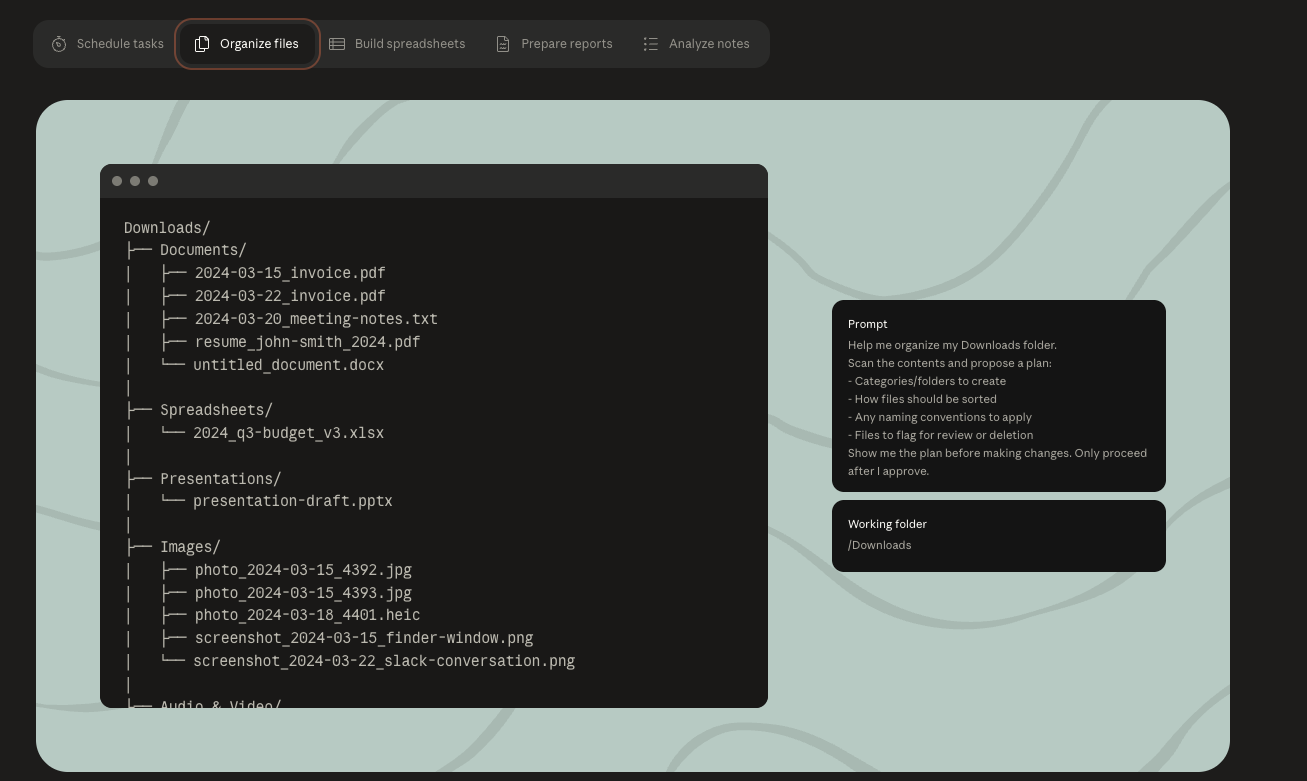
Organize a messy folder. Point Cowork at your Downloads, and it proposes a clean structure, renames files sensibly, and sorts months of clutter — showing you the plan before it touches anything.
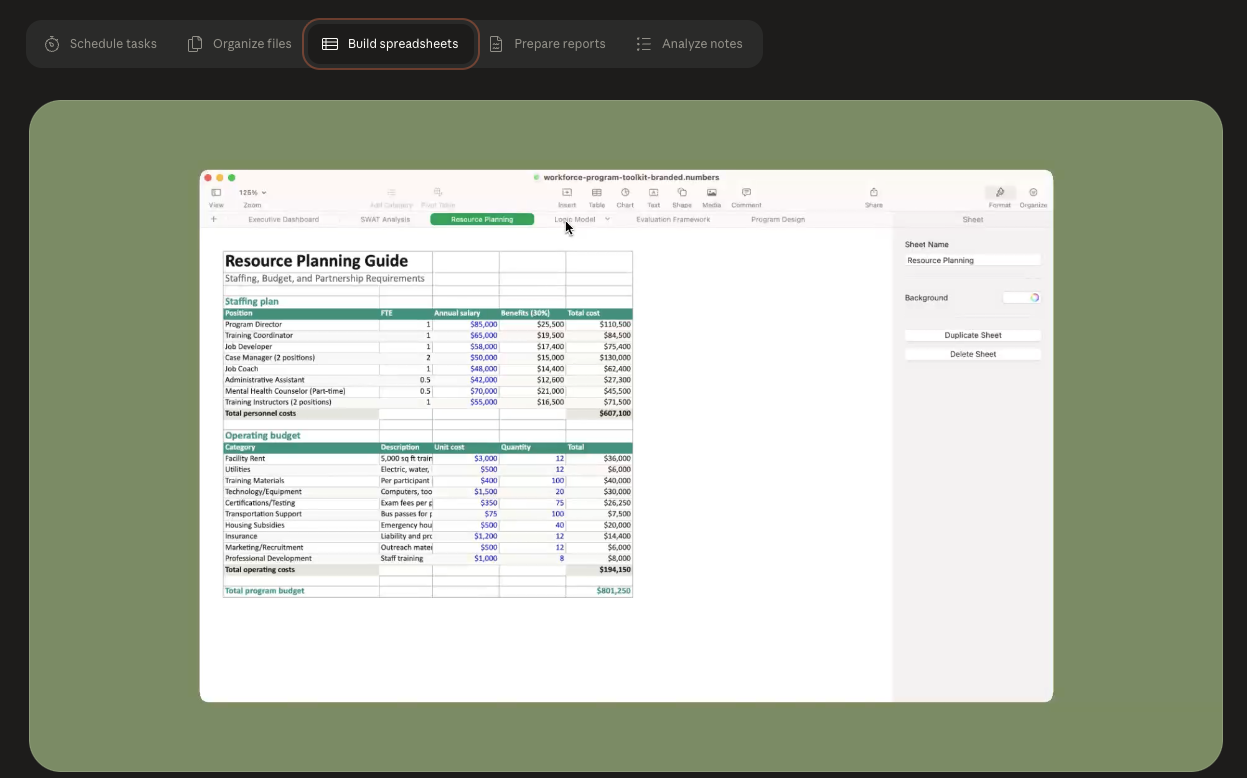
Turn screenshots into spreadsheets. Hand it a pile of receipts or invoices and come back to a formatted spreadsheet with the data extracted and organized.
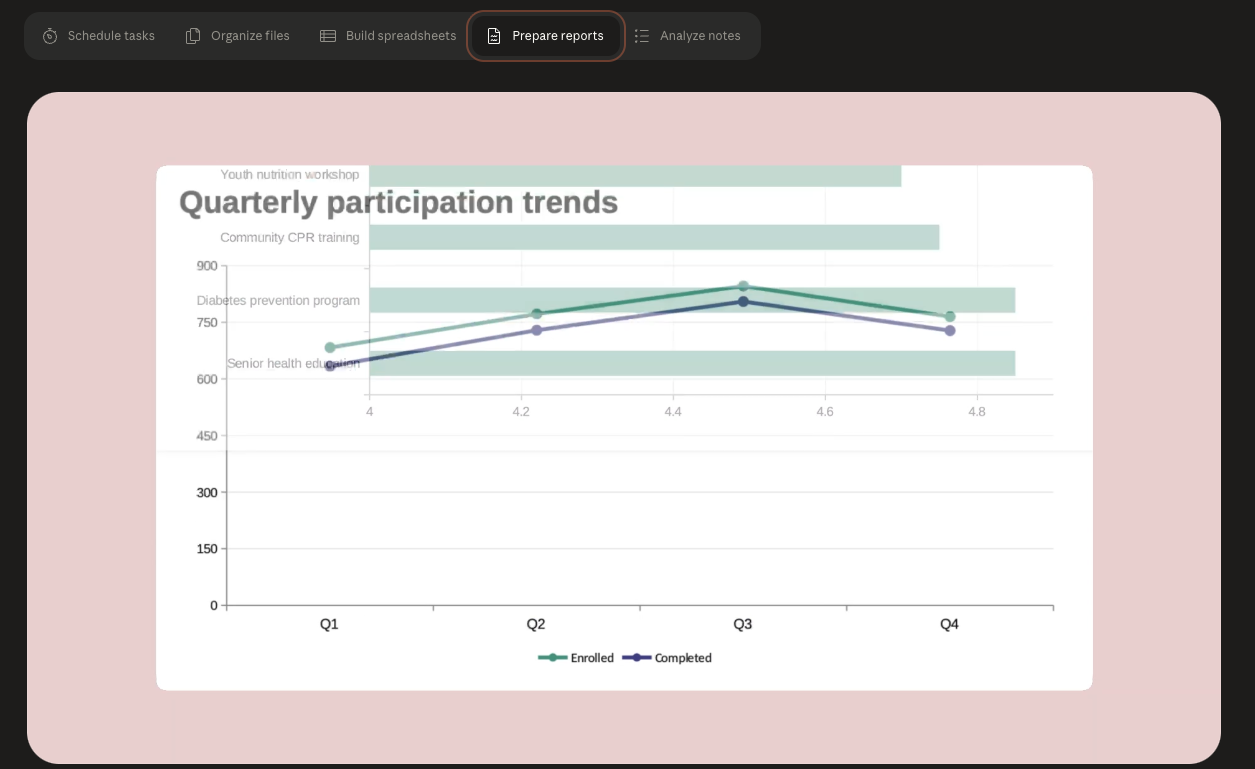
Prepare reports. Combine your template with source material and it produces a polished report or deck — and you can schedule it to refresh weekly or monthly.
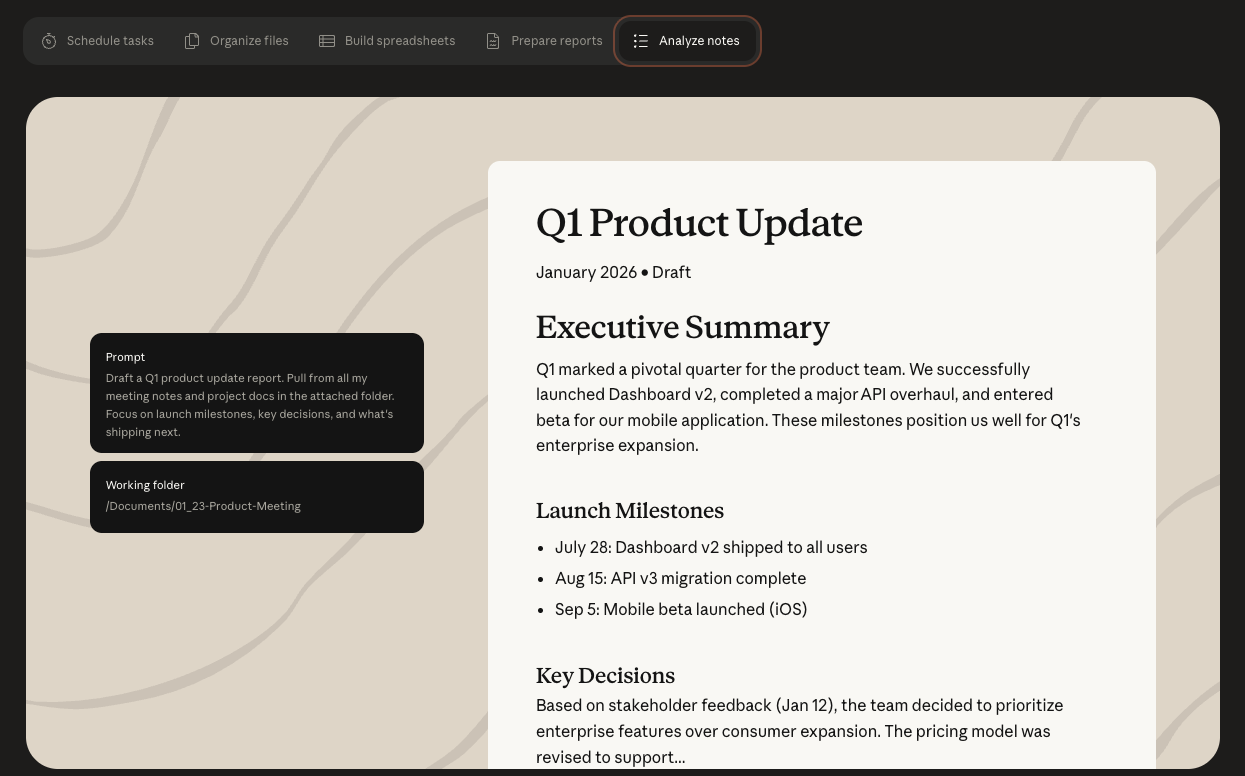
Draft from scattered notes. Give it your notes folder and it reads everything, finds what matters, and produces a first draft ready for your review.
Staying in control
Cowork takes real actions, so it's built to keep you in charge:
- You decide what it can access — folders and connectors, nothing more.
- It asks before acting on anything significant, and you can redirect at any step.
- For anything financial, personal, or work-critical, always confirm before it runs.
You can later give it permission to act without asking — but that's your call to make, when you trust a task.
Recap
- Open Cowork in the Claude desktop app.
- Connect what your brief needs (start with your calendar).
- Paste the morning-brief prompt and make it yours.
- Schedule it to run daily.
- Approve the first run, then let it fly.
- Tweak over a few days until it's perfect.
Set it once, skip the ask. That's the whole point — the boring gathering happens on its own, and you get your time back for the work that matters.
Want the one-page PDF? Grab it from the download box at the top of this page — drop your email and it's yours to keep, print, and share. You'll get new guides as they drop, too.
Want more no-fluff walkthroughs like this? I share them with the AI Delivery Lab community — practical AI for people who want to actually use it.